How to use your
SkoleIT Login

Your personal SkoleIT Login gives you easy and secure access to your school’s IT, programs and learning portals. You can use it in all the places where you previously used Unilogin. 

Log in via Unilogin Broker

Log in to learning portals such as Matematikfessor, Gyldendal, and Alinea.

  1. Search for SkoleIT in the list
  2. Choose SkoleIT
  3. Log in with your SkoleIT Login


After you log in for the first time, SkoleIT will appear at the top of your list.

See how to log in

You can use your SkoleIT login in several different places – depending on your school’s IT solutions.

Log on Mit SkoleIT
with SkoleIT Login

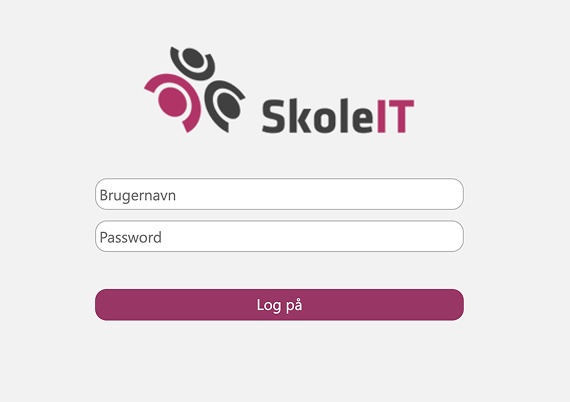
Get access to a personal start page with an overview of the school’s IT solutions and shortcuts to programs and tools.

1. Log in with your SkoleIT Login.

Log on Microsoft 365
with SkoleIT Login

Get access to email, calendar, and drive. This also includes other Microsoft tools such as Word, Excel, PowerPoint, Teams, and Copilot.

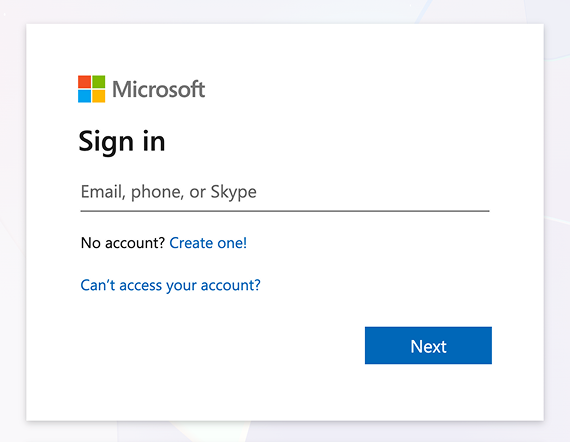
1. Your email address consists of your SkoleIT Login username + @ + your school’s domain.

Example: [email protected]

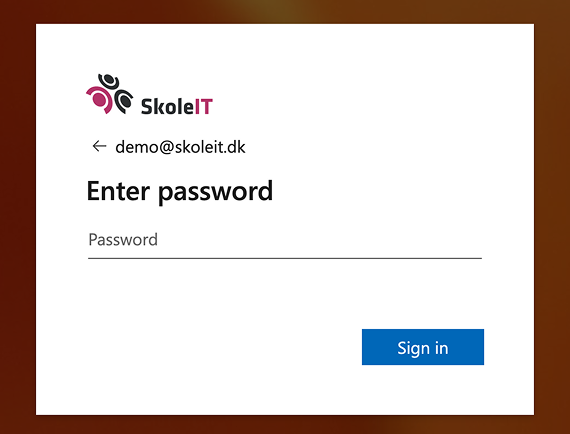
2. Type your SkoleIT Login password.

Two-step verification

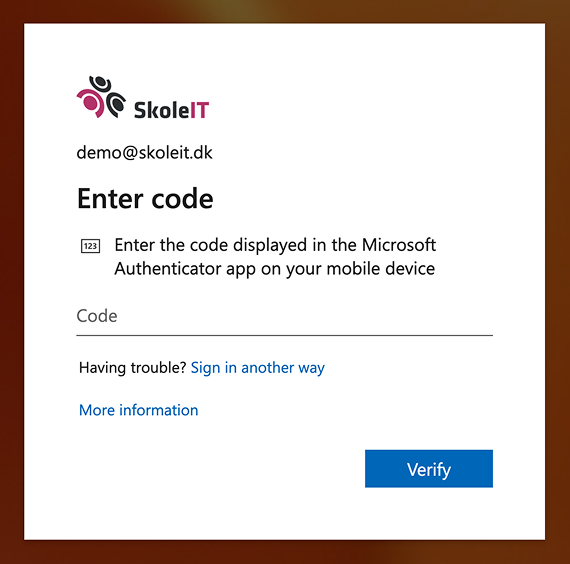
If your account is set up with two-step verification, you will be asked to confirm your identity using a code from the Microsoft Authenticator app.

Install the Microsoft Authenticator app
Log on Google Workspace
with SkoleIT Login

Get access to email, calendar, and drive. This also includes other Google tools such as Docs, Sheets, Slides, Meet and Gemini.

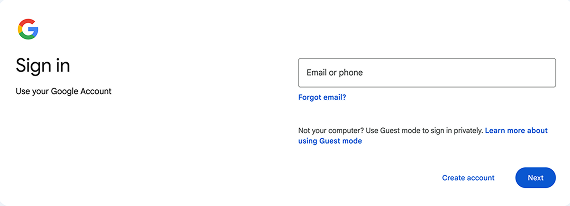
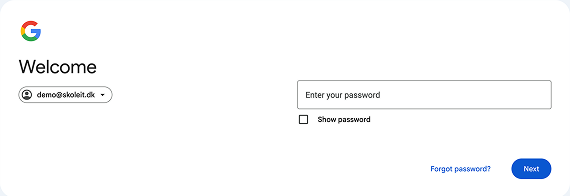
1. Your email address consists of your SkoleIT Login username + @ + your school’s domain.

Example: [email protected]

2. Type your SkoleIT password.

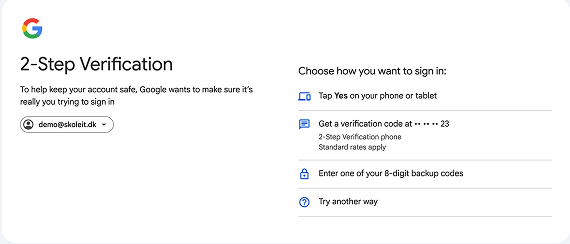
Two-step verification

If your account is set up with two-step verification, you will be asked to confirm your identity to log in.

Log on SkoleWiFi
with SkoleIT Login

Get access to the school’s network.

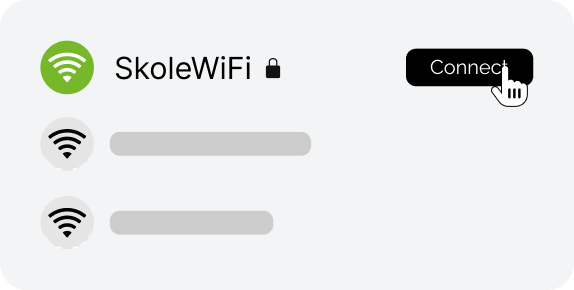
1. Connect to the SkoleWiFi network.

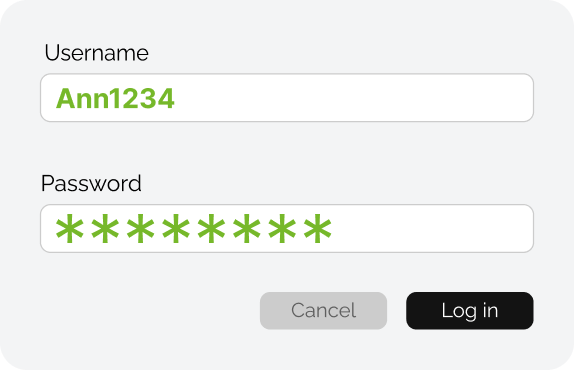
2. Log in with your SkoleIT Login.

Log on SkoleKontor
with SkoleIT Login

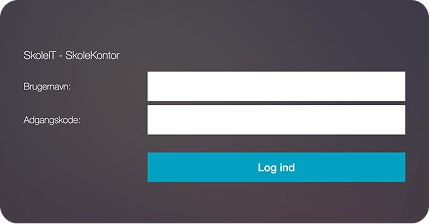
Get access to your Windows Remote Desktop with Outlook, calendar, drive and programs.

1. Log in with your SkoleIT Login.

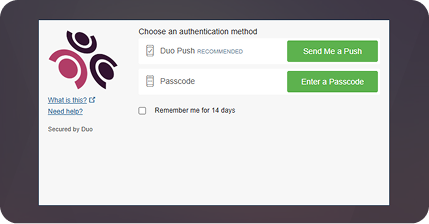
2. Send a push notification and approve the login in the Duo Mobile app.

Install the Duo Mobile app
Log on SkoleEnheder
with SkoleIT Login

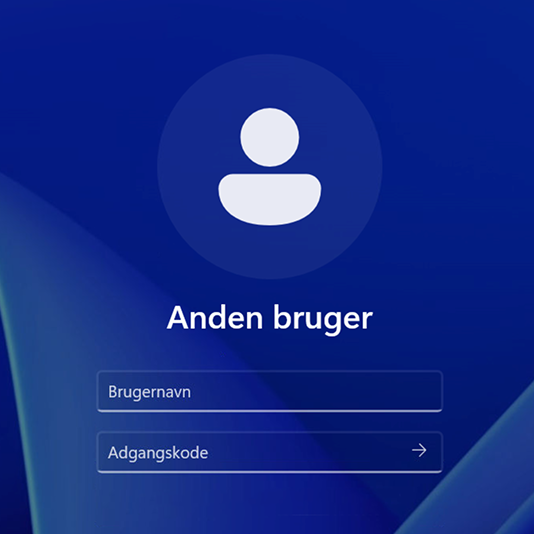
Log in to your work computer or the school’s shared/loaner computers and class sets.

Type your SkoleIT Login and press the arrow.